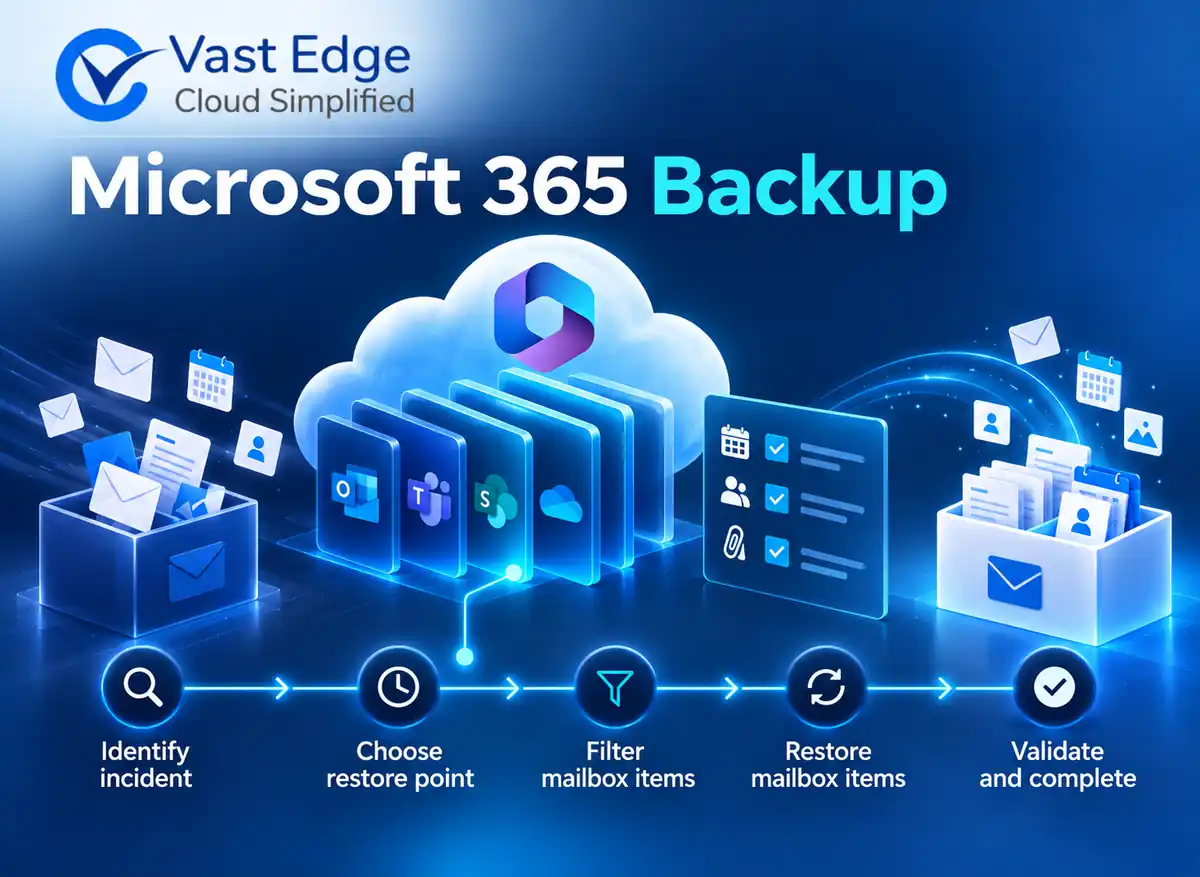
A reliable Exchange Online restore starts with incident scope, not the restore button. Identify affected mailboxes and item types, preserve evidence, choose the correct native or backup recovery path, test filters, restore the smallest safe scope and validate permissions, folders, timestamps and user access. Record every decision so the result can be reviewed and repeated.
Exchange Online Mailbox Backup and Restore Workflow
Published • 5 Nov 2026
D
AuthorDevon Miller
What should happen before an Exchange restore starts?
Open an incident record and capture who reported the problem, when the data was last known to be correct and whether deletion, modification, compromise or policy change is suspected. Avoid broad restoration until the security team confirms the incident is contained.
List affected users, shared mailboxes and item types. Email is only part of a mailbox. Calendar, contacts, notes and tasks may also matter. Record whether the user is active, soft deleted or permanently deleted because identity state changes the recovery route.
Preserve available audit evidence and search criteria. Subject, sender, recipient, approximate date, attachment status and folder provide a repeatable starting point.
Which Microsoft 365 recovery path fits the incident?
First check whether the item remains in Deleted Items or Recoverable Items and whether the applicable retention or hold configuration preserves it. These are native recovery mechanisms, not interchangeable with a separate backup policy.
Microsoft 365 Backup is a paid Microsoft service for protected Exchange Online mailboxes, OneDrive accounts and SharePoint sites. Microsoft documents granular Exchange restoration using filters such as time range, sender, recipient, attachment, subject and content type. Current documentation also notes a 1,000-item limit per granular restore operation, so broad results need narrower filters.
A third-party backup may provide a different retention, administration or recovery model. Verify actual workload and item coverage, policy start date, available recovery points, search behavior and restore destination. Do not assume every product protects drafts, inactive mailboxes or every Teams dependency.
How do you select a safe restore point and scope?
Choose a point before the unwanted change but after the last required legitimate activity. For a narrow deletion, use item filters rather than rolling back an entire mailbox. Broader restoration increases review effort and the chance of confusing users with duplicates.
Microsoft states that its Exchange restore compares prior content with the current mailbox and restores changed, deleted or purged items. Newer items are not reverted merely because an earlier restore point is selected. Read the current product documentation before each procedure because service capabilities change.
Test the query with one mailbox or a controlled subset. Review estimated results, destination behavior and folder handling before starting a larger restore.
What should the recovery operator document?
Record the protection policy, restore point, filters, mailbox list, operator, approver, start and completion time, item counts, warnings and destination. Keep screenshots or exported logs where policy permits.
Use separation of duties for sensitive recoveries. The person approving access to executive, legal or HR mailboxes should not rely only on the operator’s verbal summary. Confirm that the recovery role is assigned for the minimum necessary period.
If you are comparing protection approaches, the existing Office 365 backup evaluation guide provides buying criteria. For wider recovery governance, connect mailbox procedures to the organization’s backup and disaster recovery planning.
How should restored mailbox data be validated?
Check that representative messages open, attachments download, calendar items display and contacts are usable. Verify original folders or the designated recovery folder, dates, sender and recipient values, and any item-count differences.
Ask the business owner to validate a sample against the incident scope. Technical success is not enough if the required message cannot be found or the restored calendar series behaves unexpectedly.
Close the incident only after monitoring for duplicates, missing parent folders and user-access issues. Record residual gaps and update the runbook.
What should an Exchange recovery runbook contain?
The runbook should begin with triggers and authority. Define who can declare a mailbox recovery, who approves access to sensitive mailboxes and who confirms that a security incident is contained. Include emergency contacts and an alternative approver so recovery does not wait on one person.
List each available recovery mechanism with eligibility conditions, search fields, restore destinations, limits and escalation paths. Record the exact administrator role required. Link to current Microsoft documentation rather than copying service limits into a static runbook without a review date.
Provide a step sequence for a controlled sample, approval of the result set, production restore, validation and closure. Include naming rules for recovery folders, how duplicate items are handled and what to do if a parent folder no longer exists.
Add evidence and review requirements. Retain the incident reference, operator, filters, timestamps, counts and business validation. After each real recovery or scheduled test, update the runbook with new limits, errors and user-impact lessons.
Which recovery mistakes should the team avoid?
Do not start with a full mailbox restore when the incident concerns a few items. Broad scope adds review work and can confuse the user. Begin with evidence-based filters and expand only when the result set proves incomplete.
Do not assume that retention, hold and backup are synonyms. A retention policy may preserve content for governance, while a backup policy creates recovery points and a restore workflow. Document which mechanism is expected to solve each incident type.
Do not promise restore speed from a vendor statement or one laboratory test. Service load, mailbox size, item count and destination behavior affect the outcome. Capture observed duration and exceptions in each test.
Do not close the request when the console reports success. A user or data owner must confirm that required items open, attachments are usable, calendar behavior is acceptable and sensitive content has not been exposed to the wrong person.
Mailbox recovery readiness checklist
Confirm the incident owner, security status, mailbox identity, item types, last known good time and approved restore method. Verify that the operator has the minimum required role and that sensitive-mailbox approval is recorded. Test search filters on a controlled scope before launching the production restore.
Capture the recovery point, criteria, item counts, warnings, destination and timestamps. Validate messages, attachments, calendars, contacts and folders with the business owner. Keep the ticket open until access and duplicates are reviewed, then update the runbook with the observed limits and lessons.
How should the team review a completed recovery?
Hold a short review with security, messaging administration and the data owner. Compare the incident scope with restored results, list content that remained unavailable and identify any permission or identity issue. Assign corrective actions for policy, monitoring, training or documentation. Store only the evidence required by organizational policy, and restrict access because recovery records can reveal sensitive mailbox details.
Key Takeaways
Start with incident containment and a precise item scope.
Treat retention, native recovery, Microsoft 365 Backup and third-party backup as distinct mechanisms.
Use the smallest safe restore and document the filters, point in time and operator decisions.
Validate business usability, not only job completion status.
Explore the Relevant Vast Edge Solution
If your organization needs managed protection and guided recovery for supported Exchange, OneDrive, SharePoint and Teams data, review Vast Edge Microsoft 365 Backup. A solution discussion should confirm workload coverage, retention, roles and restore
Loading...
FEATURED BY
Google Cloud
Vast Edge's live recovery interface for cloud backups was highlighted by Google Cloud.
Vast Edge, built on GCP, launches the first live recovery interface for cloud backups, enabling IT teams to inspect, search, preview and validate the exact data available for restore.
Google Cloud
Jul 27 – Jul 31
•
Vast Edge, built on GCP, launches the first live recovery interface for cloud backups, enabling IT teams to inspect backup contents in real time. This transforms backups from a blind, log-based process into an interactive platform where teams can instantly search, preview, and validate the exact data available for restore.
This platform protects Google Workspace, NetSuite, Salesforce, Workday and many SaaS environments, providing complete visibility and enterprise-grade oversight.
Visit Vast Edge Backup & Disaster Recovery and get a free trial of their backup solutions on the GCP Marketplace for Google Workspace Backup, NetSuite Backup, Salesforce Backup, and Workday Backup.
Search
Find your data instantly
Preview
View before you restore
Validate
Ensure the right data
Recover
Restore with confidence