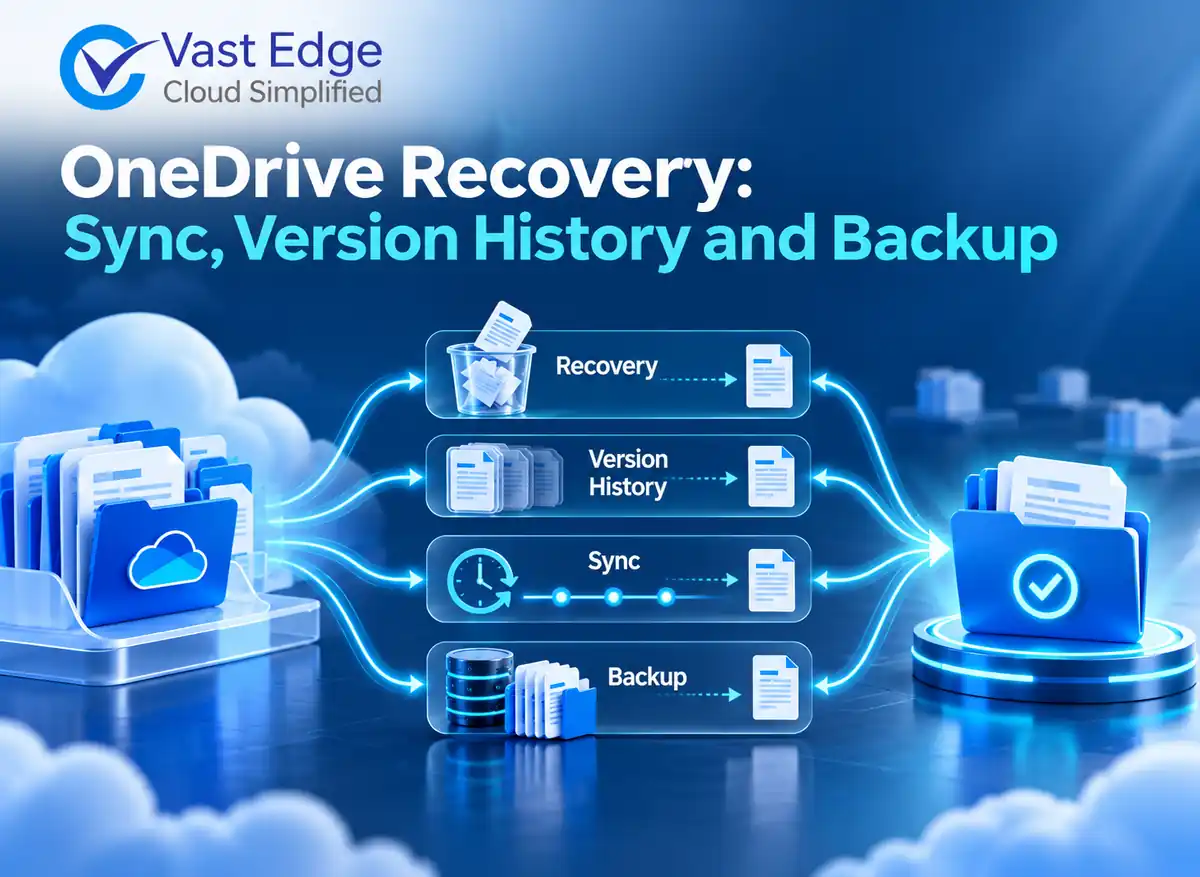
OneDrive sync keeps files available across devices, but it is not a historical backup by itself. For recovery, first identify whether the problem is one deleted file, an overwritten version, many unwanted changes or a longer-term recovery requirement. Then choose among the recycle bin, version history, full OneDrive rollback or a protected backup restore.
OneDrive Recovery vs Sync, Version History and Backup
Published • 5 Nov 2026
D
AuthorDevon Miller
Why is OneDrive sync not the same as backup?
Synchronization is designed to keep current file state aligned across cloud and connected devices. If a user changes or deletes a synchronized file, that action may propagate. Sync improves access and collaboration, but it does not by itself define an independent retention policy or a tested restore process.
OneDrive for Business includes native recovery features. Their usefulness depends on the incident, account state, configuration and elapsed time. A backup adds protected recovery points under a separate policy, but coverage and restore behavior still need verification.
Keep personal OneDrive and OneDrive for Business procedures separate. Licensing, administration and retention can differ. This article addresses business accounts managed in Microsoft 365.
When should you use the OneDrive recycle bin?
Use the recycle bin for a recently deleted file or folder when the item remains available and the original location is still appropriate. Microsoft states that work or school accounts normally retain deleted items for 93 days unless the administrator changes the setting.
The recycle bin is simple, but it is not a complete recovery strategy. Permanently deleted content cannot be restored from that bin. The item may also have been removed through a process that changes identity or site state.
Before restoring, confirm the item name, original path, owner and deletion date. Afterward, verify sharing and permissions where they matter.
When is version history the better choice?
Use version history when the file still exists but its content was overwritten, corrupted or incorrectly edited. It lets a user or administrator inspect earlier versions and restore one without rolling back unrelated files.
Microsoft says version history works across file types, although configuration and retention behavior can vary. Do not publish a universal version count without checking the tenant’s current policy.
Compare the selected version’s modified date, author and content before replacing the current file. If legal or investigative review is underway, preserve both versions and follow the organization’s evidence process.
When should you restore the entire OneDrive?
A full rollback can help when many files were changed, deleted, corrupted or affected by malware over a known period. Microsoft’s Restore your OneDrive feature can undo file and folder actions within the previous 30 days for eligible Microsoft 365 subscribers.
A broad rollback affects more than the bad files. Microsoft notes that files created after the chosen restore point are moved to the recycle bin. Review the activity feed, notify the owner and plan validation before using this option.
For large incidents, isolate the account, establish the earliest unwanted activity and test the chosen time on a controlled account when possible.
Where does Microsoft 365 Backup or a third-party backup fit?
Microsoft 365 Backup uses protected policies and recovery points for OneDrive, SharePoint and Exchange. Current Microsoft documentation describes full OneDrive restore to the same URL or a new SharePoint site, plus selected file and folder restore for protected accounts.
A separate backup product may offer a different policy, administrative boundary or recovery interface. Verify the actual data scope, recovery-point history, user-deletion behavior, permission restoration, destination choices and monitoring. “Cloud to cloud” is a deployment description, not proof of recoverability.
Use the Office 365 backup evaluation guide to compare requirements, then connect the selected method to business continuity backup planning and a recurring restore test.
How do you choose the safest recovery path?
Use the smallest method that fully addresses the incident. One deleted file usually points to the recycle bin. One bad edit points to version history. Many unwanted actions within a known period may justify a full rollback. Longer history, separated administration or controlled recovery may require a backup policy.
Before the restore, record scope, owner, time range and current permissions. After the restore, validate representative files, folder structure, sharing, access, timestamps and links from dependent processes.
Do not treat a successful job status as proof. The business owner should open critical files and confirm that the correct content is usable.
What should a OneDrive recovery runbook test?
Test four separate scenarios: a recently deleted file, an overwritten file, a folder affected by many unwanted changes and a protected-backup restore. Each scenario should specify account type, item location, permissions, expected result and evidence. Do not use personal accounts to validate a OneDrive for Business procedure.
Include identity changes. Test an active user and document the approved process for a deleted or departed user. Confirm who owns the restored data, how the OneDrive is associated with an account and whether links or sharing require repair.
Validate dependencies after the content returns. A file may be present but unusable if permissions, sharing links, automation, shortcuts or downstream references no longer work. Select representative files from critical folders and have the business owner open them through the normal process.
Record recovery time as an observed test result, not a permanent promise. Note data size, item count, service state and method. Use the evidence to improve response planning without turning one test into a universal RTO claim.
Which OneDrive recovery mistakes should you avoid?
Do not restore before identifying whether the problem is deletion, overwrite, mass change or account loss. Each has a different minimum safe method. A full rollback for one file creates unnecessary impact, while a recycle-bin check cannot solve every historical requirement.
Do not assume every synchronized device is a recovery copy. Connected devices can receive deletions and unwanted changes. Preserve an offline device only under an approved incident procedure, because reconnecting it can alter evidence or synchronize changes.
Do not overlook permissions and sharing. A restored file that only an administrator can open has not returned to normal business use. Include owners, members, guests and link behavior in validation.
Do not rely on a remembered recovery window. Verify the tenant configuration and current Microsoft documentation at the time of the incident, then record the source and date in the recovery ticket.
OneDrive recovery readiness checklist
Confirm whether the account is business or personal, whether the user is active and whether the incident affects one item, one version, many changes or the account itself. Record the original path, owner, permissions, time window and business dependencies before choosing a recovery method.
Validate the restored content through the normal user path. Open representative files, check folder structure, owners, members, guests and sharing links, and test any dependent workflow. Record observed duration and gaps, but do not convert one test into a universal recovery promise.
Key Takeaways
Sync distributes current state; it does not replace a defined backup policy.
Match the recovery tool to the incident scope and elapsed time.
Use the smallest safe recovery method and preserve evidence when compromise is suspected.
Test restored files, permissions and business use before closing the incident.
Explore the Relevant Vast Edge Solution
For organizations that need managed protection and recovery across supported OneDrive for Business, Exchange, SharePoint and Teams data, explore Vast Edge Microsoft 365 Backup. Confirm retention, recovery scope, administrative roles and test evidence against your tenant requirements.
Loading...
FEATURED BY
Google Cloud
Vast Edge's live recovery interface for cloud backups was highlighted by Google Cloud.
Vast Edge, built on GCP, launches the first live recovery interface for cloud backups, enabling IT teams to inspect, search, preview and validate the exact data available for restore.
Google Cloud
Jul 27 – Jul 31
•
Vast Edge, built on GCP, launches the first live recovery interface for cloud backups, enabling IT teams to inspect backup contents in real time. This transforms backups from a blind, log-based process into an interactive platform where teams can instantly search, preview, and validate the exact data available for restore.
This platform protects Google Workspace, NetSuite, Salesforce, Workday and many SaaS environments, providing complete visibility and enterprise-grade oversight.
Visit Vast Edge Backup & Disaster Recovery and get a free trial of their backup solutions on the GCP Marketplace for Google Workspace Backup, NetSuite Backup, Salesforce Backup, and Workday Backup.
Search
Find your data instantly
Preview
View before you restore
Validate
Ensure the right data
Recover
Restore with confidence